Roblox error code 772: How to fix it quickly
Roblox error code 772 prevents players from joining games due to permission or network issues. Learn how to fix it using simple system and DNS changes.

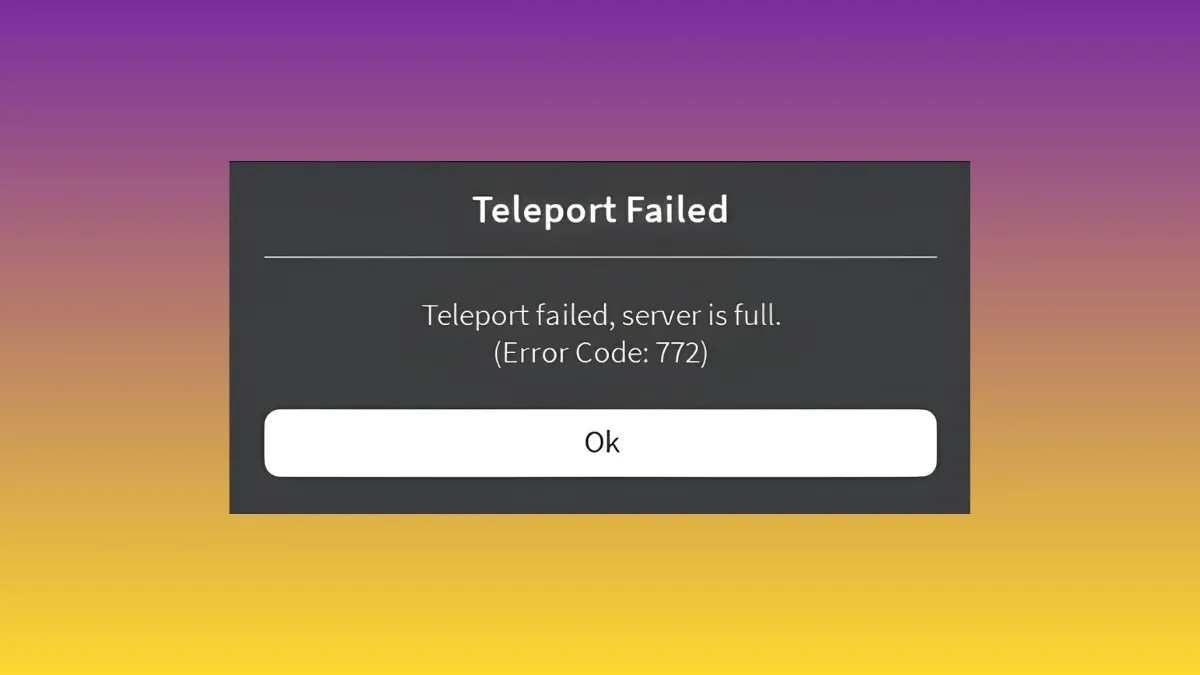
Roblox error code 772 usually appears when the game is unable to properly initialise a connection between the client and Roblox servers. Players typically see the error during launch or when joining a game, often without a clear explanation, which makes it especially frustrating. Fortunately, this issue is rarely permanent and can usually be resolved with a few targeted fixes.
The error is most commonly linked to permission conflicts, network configuration problems, or DNS resolution issues. In many cases, Roblox is blocked from accessing required system or network resources, which causes the connection to fail before a game session can load. Below are the most reliable methods to fix Roblox error code 772, starting with the simplest solution.
If you’re struggling with other Roblox errors, check out our Roblox error code 291 fix and our instructions on how to fix Roblox error code 260, helping you play Roblox without any issues!
Method 1: Launch Roblox as administrator
Sometimes the solution to a seemingly complex problem is much simpler than expected. In the case of Roblox error code 772, the issue may be caused by restricted permissions on your system. Running Roblox without sufficient privileges can prevent it from accessing required network or system components.
To fix this, right-click the Roblox icon on your desktop or in the Start menu and select Run as administrator. This gives the game elevated permissions and allows it to bypass potential access restrictions. In many cases, Roblox error code 772 disappears immediately after launching the game this way, making this the quickest fix to try before moving on to more advanced steps.
Method 2: Reset network configuration settings
If running Roblox as an administrator does not resolve the issue, the next step is to reset your network configuration. Corrupted or outdated network settings can interfere with Roblox’s ability to establish a stable connection, triggering Roblox error code 772.
Resetting your network settings allows the system to clear cached data and rebuild fresh configurations. Follow these steps carefully:
- Press the Windows key to open the Start menu.
- Type cmd in the search bar.
- Right-click Command Prompt and select Run as administrator.
- In the Command Prompt window, type:
netsh winsock resetand press Enter. - Next, type:
ipconfig /flushdnsand press Enter. - Then type:
ipconfig /releaseand press Enter. - After that, type:
ipconfig /renewand press Enter. - Finally, type:
netsh int ip resetand press Enter.
Once all commands are completed, restart your computer and launch Roblox again. This process refreshes your network stack and often resolves connection-related causes of Roblox error code 772.
Method 3: Change your DNS server
If the issue persists, changing your DNS server can help stabilise your connection to Roblox servers. DNS problems can cause routing delays or failed lookups, which may result in Roblox error code 772 during game startup.
To do this, first open Command Prompt as administrator using the steps 1-3 from Method 2. Then:
- In the Command Prompt window, type in ‘ping 1.1.1.1‘ and press Enter.
- Next, type in ‘ping 8.8.8.8‘ and press Enter.
- Copy the ping with the lowest average number.
- Go to Settings → Network → Internet → Ethernet.
- Click the Edit button next to the DNS server assignment tab.
- Select Manual and turn on IPv4.
- Paste the ping with the lowest average into the Preferred DNS field.
- In the Alternate DNS field, type in ‘1.0.01‘ if 1.1.1.1 is your preferred ping. Otherwise, type in ‘8.8.4.4‘.
- Press Save and launch Roblox.
Switching to a faster, more reliable DNS often resolves lingering connectivity issues tied to Roblox error code 772.
Conclusion
In most cases, Roblox error code 772 is not caused by server outages or account problems. It is usually a local configuration issue that can be fixed by adjusting permissions or network settings. If none of the methods above work, restarting your router or temporarily disabling VPN software may also help.
Checking back regularly ensures you stay updated if Roblox introduces changes that affect how this error behaves in future updates.

Editorial & Verification Notice
Content on CodesRaid is produced through a collaborative process involving research contributors, editorial contributors, and technical oversight. Codes are tested in-game where possible and otherwise verified using official developer sources and trusted community channels. Articles are reviewed and updated regularly to maintain accuracy.
Content on CodesRaid is produced through a collaborative process involving research contributors, editorial contributors, and technical oversight. Codes are tested in-game where possible and otherwise verified using official developer sources and trusted community channels. Articles are reviewed and updated regularly to maintain accuracy.