Roblox error code 524: How to fix it quickly
Roblox error code 524 occurs when a server fails to respond, often when joining private or VIP servers. Learn what causes it and how to fix it quickly.

Roblox error code 524 appears when the game client successfully connects to Roblox, but the target server fails to respond in time. Players usually encounter this error when attempting to join a private server, VIP server, or a game session that requires an invitation. The message often appears suddenly, with no clear explanation, making it confusing for many users.
Fortunately, Roblox error code 524 is not a permanent issue and is rarely related to account bans or corrupted game files. In most cases, it is caused by server availability limitations, expired private server links, or temporary connection delays. Below, we explain why this error happens and how to fix it using the most reliable methods.
Additionally, if you encounter Roblox error code 524, make sure to check your connection and server status.
If you are experiencing other Roblox-related issues, you may also find our guides on Roblox error code 429 and Roblox error code 772 helpful for resolving connectivity problems.
Why Roblox error code 524 happens
Roblox error 524 typically occurs when:
- You try to join a private or VIP server without proper access
- The server owner has shut down or restarted the server
- The invite link has expired
- The server is full or unresponsive
- Roblox servers experience temporary delays or throttling
Because private servers require explicit permission, Roblox blocks access if the server cannot confirm your eligibility within a short time window, resulting in error code 524.
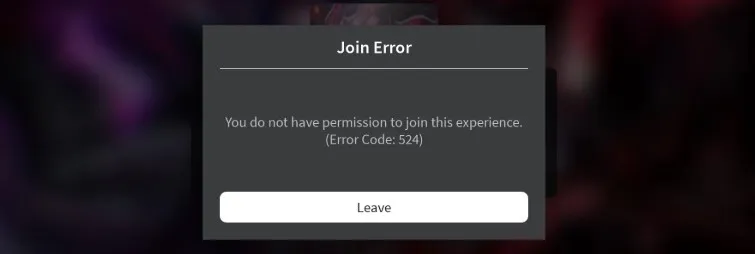
Method 1: Check whether the server is private or invitation-only
The most common cause of Roblox error 524 is attempting to join a private server without an active invite. This often happens when players click old links shared on Discord, social media, or group chats.
To fix this:
- Confirm that the server owner has explicitly invited you
- Ask the owner to send a new invite link
- Make sure the server is still active and running
If you are not on the server’s allowed user list, Roblox will block the connection automatically.
Method 2: Join the server through the Roblox website
In some cases, joining a server directly from an external link can trigger Roblox error code 524. Using the Roblox website instead can bypass this issue.
Follow these steps:
- Open the Roblox website
- Go to the game’s main page
- Click Servers
- Select an available server manually
This method works best for public servers and can help confirm whether the issue is limited to private access.
Method 3: Wait and try again later
Roblox error 524 can occur during temporary server slowdowns, especially during peak hours or large in-game events. If the server does not respond quickly enough, Roblox times out the connection.
If this happens:
- Wait 10–20 minutes
- Refresh the page
- Try joining the server again
In many cases, the error resolves itself once server traffic stabilizes.
Method 4: Restart Roblox and your internet connection
Although error 524 is usually server-related, restarting your connection can help rule out local issues.
Try the following:
- Close Roblox completely
- Restart your router
- Relaunch Roblox
- Attempt to rejoin the server
This ensures your connection is clean and eliminates cached session data that may interfere with server access.
Method 5: Check Roblox server status
If none of the above methods work, the issue may be on Roblox’s side.
Visit the Roblox status page to check:
- Server outages
- Partial disruptions
- Ongoing maintenance
If Roblox is experiencing issues with private servers or matchmaking, there is no local fix, and waiting is the only solution.
Conclusion
Roblox error code 524 is almost always related to private server access, expired invitations, or temporary server delays rather than account or device problems. In most cases, confirming your invitation status or waiting for the server to respond resolves the issue quickly.
If the error keeps appearing across multiple games and servers, checking Roblox’s server status or reconnecting later is recommended. Staying aware of server limitations can help avoid this error in the future, especially when joining private or VIP sessions.

Editorial & Verification Notice
Content on CodesRaid is produced through a collaborative process involving research contributors, editorial contributors, and technical oversight. Codes are tested in-game where possible and otherwise verified using official developer sources and trusted community channels. Articles are reviewed and updated regularly to maintain accuracy.
Content on CodesRaid is produced through a collaborative process involving research contributors, editorial contributors, and technical oversight. Codes are tested in-game where possible and otherwise verified using official developer sources and trusted community channels. Articles are reviewed and updated regularly to maintain accuracy.